Introduction
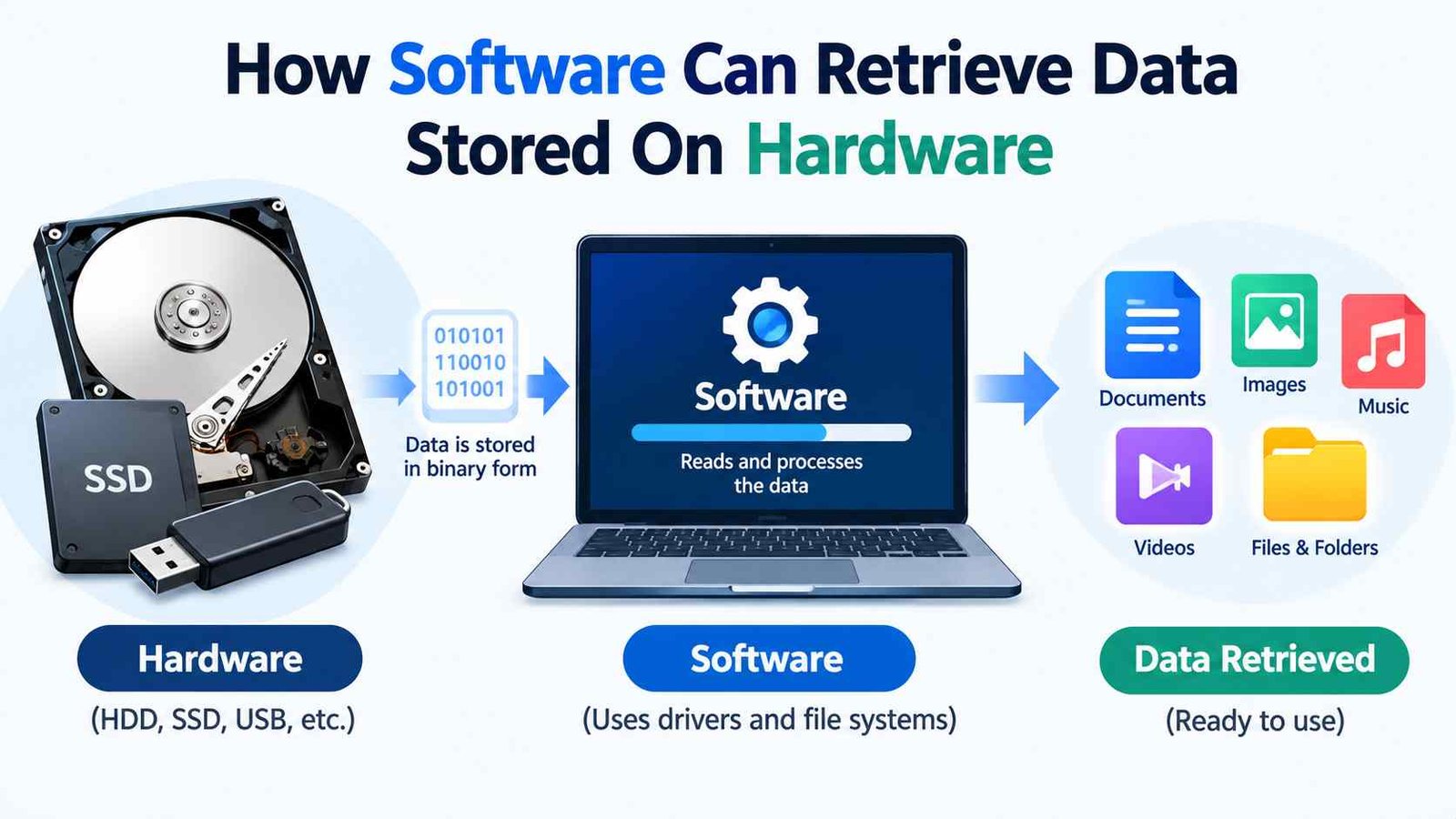
Every time you open a saved photo, read a document, or play a video, software retrieves data from hardware in the background. Although this process feels instant, several computer components work together to make it happen. The storage device holds the information, while software provides the instructions needed to find and use it. If you want to explain how software can retrieve data stored on hardware, the easiest way is to understand the connection between applications, the operating system, file systems, device drivers, and storage devices.
Software usually does not search the physical storage device randomly or read every bit one by one. Instead, it sends a request through organized software layers. The operating system interprets the request, the file system helps locate the data, and the storage hardware reads the required information. The data is then transferred into memory, where the application can process it.
This guide explains the complete process in easy English, including how HDDs, SSDs, and USB drives work, why caching improves speed, and what happens when stored data cannot be accessed.
What Does It Mean to Retrieve Data Stored on Hardware?
Data retrieval means reading information that has already been saved on a physical storage device. When you save a file, the computer stores its information as binary data, represented by bits and bytes. Later, when you open that file, the computer retrieves those stored bytes and makes them available to the software using them.
For example, when you open a saved Word document, the document is not recreated from nothing. Its data already exists on an HDD, SSD, USB drive, or another storage device. The application requests the file, and the computer reads the required information from storage.
Physical Data vs. Logical Data
Physical data is the information stored in the physical components of a device. On an HDD, it is represented by magnetic states on platters. On an SSD, it is stored in flash memory cells. Logical data is how users and software understand that information, such as a photo, document, folder, or video.
The file system connects these two views. It allows software to work with meaningful file names and folders instead of requiring users to understand electrical signals, magnetic patterns, or individual storage cells. This separation makes computers easier to use and allows applications to work with different storage technologies through standard interfaces.
What Is the Relationship Between Software and Hardware?
Software and hardware perform different but connected roles. Hardware includes the physical parts of a computer, such as the CPU, RAM, motherboard, storage drive, and storage controller. Software includes the operating system, applications, and instructions that tell the hardware what to do.
When an application needs stored data, it normally does not communicate with the storage device in the same way a person communicates with an application. Instead, it uses software interfaces provided by the operating system. These interfaces translate a high-level request, such as opening a file, into operations that the computer can perform.
Why Software Needs Intermediary Layers
Intermediary layers make communication easier, safer, and more consistent. An application does not need separate instructions for every brand of SSD or HDD. It can use standard file-access functions, while the operating system and device driver handle the hardware-specific details.
The main layers commonly involved are the application, operating system, file system, device driver, storage controller, and storage device. Each layer has a responsibility. The application requests and uses the data, the operating system manages the request, the file system identifies where the data belongs, and the driver communicates with the hardware. This layered design allows different applications and storage devices to work together efficiently.
What Role Does the Operating System Play in Data Retrieval?
The operating system acts as a manager between applications and computer hardware. When software needs to read stored data, the operating system receives the request and coordinates the steps required to complete it. It manages files, storage devices, memory, permissions, and communication with hardware components.
For example, if you open a PDF, the PDF reader does not usually need to know the exact physical location of every byte on the drive. It asks the operating system to open and read the file. The operating system then works with the file system and storage driver to obtain the required information.
How System Calls Help Applications Read Data
Applications communicate with the operating system through APIs and, at a lower level, system calls. Common file operations include opening a file, reading data, moving to a particular position, and closing the file. On many systems, operations such as open(), read(), and close() represent these basic actions, although exact interfaces vary by operating system.
The operating system checks the request, identifies the appropriate storage resources, and manages the transfer of data. It may also use memory buffers or caching to improve performance. This process prevents most applications from needing direct control over storage hardware, making the system more secure and easier to maintain.
What Is a File System and Why Is It Important?
A file system is a method used by an operating system to organize, store, name, and retrieve data on a storage device. Without a file system, a drive would contain raw storage locations that would be difficult for ordinary users and applications to understand.
When you save a file, the file system records information that helps the computer find it later. This information can include the file name, size, timestamps, permissions, and references to the locations where its data is stored. When you request the file, the operating system uses this organization to locate the correct information.
Files, Folders, Partitions, and Volumes
A file is a collection of stored data, such as a photograph or spreadsheet. A folder, also called a directory, organizes files and other folders. A partition is a defined section of a storage device, while a volume is a logical storage area that the operating system can manage.
These structures help software navigate storage in a predictable way. For example, a file path such as Documents/Reports/January.docx gives the operating system a logical route to the requested file.
Examples of File Systems
Common file systems include NTFS and exFAT on many Windows-compatible devices, APFS on modern Apple systems, and ext4 on many Linux systems. FAT32 is also widely used for compatibility with certain removable devices.
Different file systems use different organizational methods and features. However, their basic purpose is similar: to help software store, locate, manage, and retrieve data reliably.
How Software Can Retrieve Data Stored on Hardware: Step-by-Step Process
The process of retrieving data involves several connected steps. Although the exact details vary by operating system and device, the general flow is:
Application → Operating system → File system → Device driver → Storage hardware → Memory → Application
Step 1 — The User or Application Requests Data
The process begins when a user performs an action, such as opening a document, playing a video, or launching a program. The application identifies the data it needs.
For example, when you double-click a saved photo, the photo viewer receives a request to load that image. The application may know the file path, but it usually does not know the exact physical storage location.
Step 2 — The Application Sends a Read Request
The application asks the operating system to open and read the required file. This request may include a file path, file handle, or a particular position within the file.
The application does not normally need to understand the storage device’s internal structure. It relies on the operating system to handle the underlying operations and return the requested data.
Step 3 — The Operating System Checks Access Permissions
Before providing the data, the operating system may check whether the user or application has permission to access it. Security rules can depend on the file’s ownership, permissions, account privileges, or other system policies.
If access is allowed, the process continues. If access is denied, the application may display an error instead of receiving the file contents.
Step 4 — The File System Locates the Data
The operating system uses the file system to interpret the file path and locate the requested file. The file system checks directory information and metadata to determine which storage blocks or other logical locations contain the file’s data.
A large file may be divided into multiple sections rather than stored in one continuous area. The file system keeps track of these locations so the operating system can request the data in the correct order.
Step 5 — The Device Driver Communicates with the Hardware
The operating system passes the storage request to an appropriate device driver. A driver is software that helps the operating system communicate with a particular class of hardware.
The driver translates general storage operations into commands the device can understand. Depending on the system, the request may travel through interfaces such as SATA, NVMe, or USB before reaching the storage controller.
Step 6 — The Storage Device Reads the Data
The storage device performs the physical read operation. An HDD uses magnetic storage and mechanical components to locate and read information. An SSD uses a controller to retrieve data from flash memory.
The device does not necessarily understand the user’s original request to “open a photo.” It receives lower-level commands identifying the data that needs to be read and then returns the corresponding bytes.
Step 7 — Data Is Transferred to RAM or a System Buffer
After the storage device reads the information, the data is transferred through the computer’s storage interface. The operating system may place it in a memory buffer or cache.
RAM provides temporary working space where the CPU and application can process the retrieved information. This is important because persistent storage and working memory serve different purposes: storage keeps data when power is off, while RAM holds data actively being used.
Step 8 — The Application Receives and Uses the Data
Finally, the operating system makes the requested data available to the application. The application interprets the file format and uses the contents.
For example, a photo viewer decodes the image data and displays it on the screen. A music player decodes an audio file, while a word processor interprets document data for editing.
How Different Storage Devices Retrieve Data
The general software process is similar across storage devices, but the physical method of reading data differs. The operating system and applications usually interact with each device through standard interfaces, while the device’s controller manages its internal operations.
How an HDD Retrieves Data
A hard disk drive stores data magnetically on rotating platters. When software requests information, the HDD controller identifies the relevant storage locations. The drive’s mechanical components position the read/write head, and the head reads the magnetic information.
Because HDDs contain moving parts, access time can be affected by head movement and platter rotation. This mechanical activity is one reason HDDs generally have higher access latency than SSDs.
How an SSD Retrieves Data
A solid-state drive stores data in NAND flash memory rather than on rotating platters. Its controller manages the internal mapping between logical addresses provided by the computer and the physical flash-memory locations.
When software requests data, the SSD controller retrieves the relevant information from flash memory and returns it through the storage interface. Since SSDs have no mechanical read/write head, they generally provide much lower access latency than HDDs.
How USB Drives and Memory Cards Work
USB flash drives and many memory cards also use flash memory. They communicate with the computer through interfaces such as USB or a card reader. The operating system identifies the device, mounts a supported file system, and allows applications to access its files.
What Are File Metadata, Blocks and Logical Addresses?
File metadata is information that describes a file and helps the operating system manage it. Examples include the file’s name, size, creation or modification time, permissions, and references to where its contents are stored.
Storage devices organize data into addressable units, although the exact terminology and layout vary. Operating systems and file systems commonly work with logical blocks or logical addresses rather than directly exposing every physical storage detail.
How File Metadata Helps Locate Data
When an application requests a file, the operating system uses the file path to find directory information. That information leads to metadata describing the file. The metadata helps identify the logical storage locations containing the file’s contents.
This organization allows the computer to retrieve the correct data without scanning the entire drive every time a file is opened.
Why Files May Be Stored in Multiple Locations
A file may be divided into several blocks, especially when it is large or when the storage becomes fragmented. These blocks may not be physically adjacent.
The file system records how the pieces belong together. During retrieval, the operating system requests the relevant data and reconstructs the file’s contents in the correct logical order before delivering them to the application.
How Caching Makes Data Retrieval Faster
Caching is a technique that stores frequently used data in a faster temporary location. In data retrieval, caching can reduce the need to read the same information from storage repeatedly.
Operating systems may use RAM to cache recently accessed file data. Storage devices may also have their own internal caches. When an application requests data, the system may first check whether the required information is already available in a suitable cache.
What Happens During a Cache Hit?
A cache hit occurs when the requested data is already available in the relevant cache. The operating system can provide the data from that faster location instead of requesting it from the physical storage device again.
For example, reopening a recently used file may feel faster because some of its data is still available in memory.
What Happens During a Cache Miss?
A cache miss occurs when the requested data is not available in the relevant cache. The operating system must request it from the storage device or another underlying source.
Once retrieved, the data may be placed in a cache so future requests can be completed more quickly. Caching improves performance, but it does not replace permanent storage.
How Software Retrieves Data from Databases and Other Hardware-Connected Systems
Not all stored information is retrieved as an ordinary file. Applications may also access data through databases, network storage, embedded systems, or other hardware-connected platforms.
In a database system, an application typically sends a query to a database management system. The database engine interprets the query, locates the required records, and returns the results. The database itself may store information in files on an HDD, SSD, or server storage system.
File Retrieval vs. Database Retrieval
| Feature | File Retrieval | Database Retrieval |
| Request | File or byte range | Records or query results |
| Main interface | File-system API | Database query interface |
| Data organization | Files and directories | Tables, indexes, or other structures |
| Processing | Application interprets file | Database engine processes the query |
Both methods ultimately depend on storage and memory, but the software layer that organizes and returns the information is different.
How Security and Permissions Affect Data Retrieval?
Security controls determine who or what can access stored data. A file may exist on a drive, but that does not mean every application or user is allowed to read it.Operating systems can enforce permissions based on user accounts, file ownership, access rules, and application restrictions. Encryption adds another layer of protection by storing data in a form that requires the correct key or authorized process to interpret it.
What Happens If Software Does Not Have Permission?
If an application lacks permission, the operating system may reject its request. The application could display an “Access Denied” message or another error.
This separation is important because it prevents unauthorized programs from freely reading private documents, system files, or protected information. In some cases, an administrator or authorized user may need to change permissions, but access should always follow the system’s security rules.
What Happens When Stored Data Is Damaged or Cannot Be Retrieved?
Sometimes software cannot retrieve data because the problem is not with the application itself. A file system may be corrupted, a storage device may be failing, or a connection may be damaged. Other causes include unsupported file systems, missing drivers, encryption, accidental deletion, or permission problems.
A failing HDD may produce unusual sounds, while an SSD or USB drive may disconnect, show errors, or become inaccessible. File corruption can also prevent an application from opening a file even when the storage device is still detected.
Basic Troubleshooting Steps
Start by checking whether the device is properly connected and recognized by the operating system. Confirm that the file system is supported and that the user has permission to access the data. If appropriate, check for driver issues and use trusted built-in disk tools carefully.
If the drive contains important information and appears to be failing, avoid repeatedly writing to it or attempting risky repairs. Create a backup of accessible data first, or seek professional data-recovery help.
Can Software Recover Deleted Data?
Sometimes recovery software can restore deleted files, but success is not guaranteed. Deletion often removes or changes the file system’s references to data rather than immediately erasing every underlying bit.
However, new data may overwrite the same storage areas. Encryption, physical damage, and solid-state drive maintenance processes can also affect recovery. For important files, professional assistance may be safer than experimenting with multiple recovery tools.
Practical Example: What Happens When You Open a Saved Photo?
Imagine that you double-click a photo saved on your computer. The photo viewer first receives the request and asks the operating system to open the image file. The operating system checks the file path and confirms that the application has permission to access it.
Next, the file system locates the photo’s metadata and identifies the logical storage blocks containing the image. The storage driver sends a read request to the drive. The HDD or SSD retrieves the stored bytes and transfers them into RAM or a system buffer.
The photo viewer then receives the data and decodes the image format, such as JPEG or PNG. Finally, it converts the image information into pixels that can be displayed on the screen.
Simple Data Retrieval Flow
Photo viewer → Operating system → File system → Storage driver → HDD/SSD → RAM → Photo viewer → Screen
This example shows that opening a file is a coordinated process rather than a direct application-to-disk action.
Software vs. Hardware: Who Does What During Data Retrieval?
Understanding each component’s responsibility makes the entire process easier to remember.
| Component | Main Responsibility |
| Application software | Requests and uses the data |
| Operating system | Manages access and coordinates operations |
| File system | Organizes files and identifies their locations |
| Device driver | Communicates with the storage device |
| Storage controller | Handles device-level storage operations |
| HDD, SSD, or USB drive | Physically stores and reads data |
| RAM | Temporarily holds data for processing |
| CPU | Executes instructions and processes information |
In simple terms, software decides what information it needs, the operating system manages how to obtain it and hardware performs the physical storage operation.
Common Factors That Affect Data Retrieval Speed
Data retrieval speed depends on several factors. The type of storage device is important: SSDs generally provide faster access than HDDs because they do not rely on mechanical movement. The connection interface also matters, as different interfaces offer different performance limits.
File size, storage workload, fragmentation, cache availability, RAM pressure, and the health of the device can also affect performance. For remote or network storage, network speed and server response time become additional factors.
HDD vs. SSD Data Retrieval Comparison
| Feature | HDD | SSD |
| Storage method | Magnetic platters | NAND flash memory |
| Moving parts | Yes | No |
| Mechanical latency | Present | No mechanical seek |
| Typical access speed | Slower | Faster |
| Common advantage | Lower cost per capacity | Fast access and responsiveness |
Frequently Asked Questions
1. How does software retrieve data from hardware?
Software sends a request through the operating system. The file system locates the data, the device driver communicates with the storage device, and the retrieved information is returned to the application.
2. Can software directly access hardware storage?
Some specialized software can access storage at a low level, but ordinary applications usually rely on operating-system interfaces, file systems, and device drivers rather than directly controlling hardware.
3. What software helps retrieve stored data?
File managers, operating systems, database systems, backup tools, and data-recovery applications can retrieve stored data. The right tool depends on whether the data is accessible, deleted, corrupted or stored in a database.
4. What is the role of a file system in data retrieval?
A file system organizes data and maintains information that helps the operating system locate files. It allows software to retrieve data using logical names and paths instead of physical storage details.
5. Is data stored on an SSD retrieved differently from an HDD?
Yes. Both use software layers such as the operating system and device driver, but an HDD reads magnetic storage using mechanical components, while an SSD retrieves data from flash memory through its controller.
Conclusion
Software retrieves data stored on hardware through a series of connected layers. An application requests information, the operating system manages the request, and the file system identifies where the data is organized. A device driver and storage controller then help the hardware read the required information. The data is transferred into memory, where the application can process or display it.Whether the device is an HDD, SSD, or USB drive, the basic idea remains the same: software provides the instructions, while hardware stores and reads the physical data. Understanding this process makes it easier to understand file systems, storage performance, caching, permissions and data recovery.