Introduction
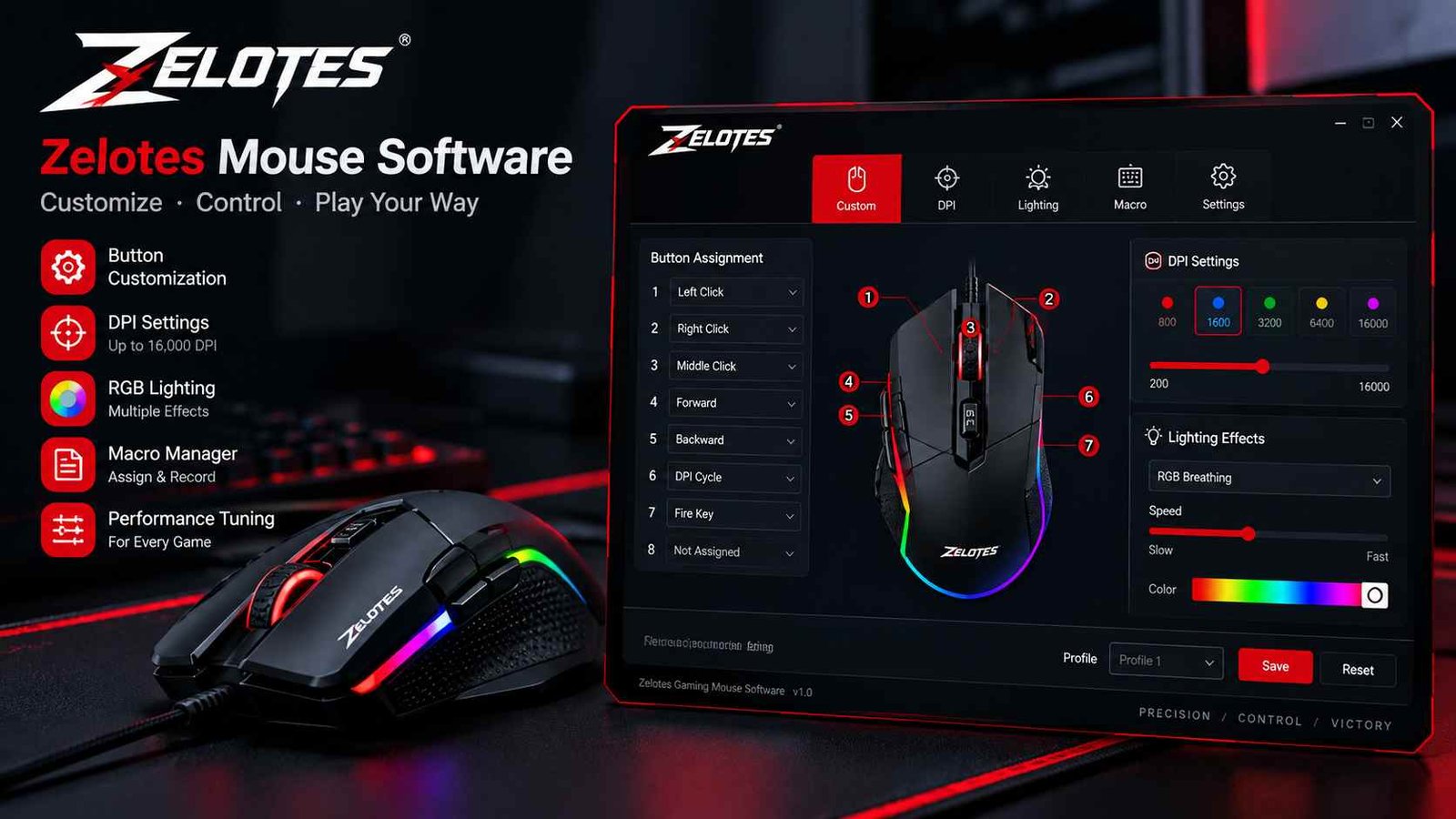
Zelotes mouse software is the official companion program designed for compatible ZELOTES gaming and ergonomic mice. While most ZELOTES mice work immediately after being plugged into a computer, the software unlocks advanced features that are not available through Windows alone. It allows users to customize buttons, adjust DPI sensitivity, create gaming macros, manage RGB lighting, and save personalized profiles for different activities.
Many gamers, office professionals, designers, and programmers choose ZELOTES mice because they offer programmable buttons and ergonomic designs at an affordable price. The software transforms a standard mouse into a fully customizable tool that can improve gaming performance, increase productivity, and make everyday computer tasks more efficient.
The biggest difference between plug-and-play functionality and zelotes mouse software is control. Without the software, your mouse performs basic clicking and scrolling. With it, you can assign keyboard shortcuts, automate repetitive actions, fine-tune cursor sensitivity, and create separate settings for work and gaming.
This complete guide explains everything you need to know, including downloading the correct driver, installing the software, configuring settings, fixing common problems, and using the best features for both gaming and productivity.
What Is Zelotes Mouse Software?
Zelotes mouse software is a Windows application that combines device drivers with customization tools for compatible ZELOTES mice. The driver helps Windows recognize the hardware correctly, while the configuration software gives users access to programmable features such as button mapping, DPI adjustment, RGB lighting, macros, and profile management.
It is important to understand the difference between a driver and configuration software. A driver enables communication between the operating system and the mouse, ensuring stable performance. The configuration software is the user interface where you personalize settings. Some ZELOTES models install both together, while others include the driver inside a single setup package.
ZELOTES offers software support for many wired gaming mice, programmable vertical mice, and selected wireless models. Popular models such as the C-Series, T-Series, and several F-Series devices include downloadable software from the official support page. Since each model has unique hardware features, drivers are model-specific rather than universal.
Most versions of zelotes mouse software are designed for Windows 10 and Windows 11. Before downloading, always confirm your exact model number printed on the bottom of the mouse to ensure full compatibility and avoid installation issues.
Key Features of Zelotes Mouse Software
The biggest advantage of zelotes mouse software is the ability to personalize your mouse according to your needs. Whether you play competitive games or spend hours working at a computer, these customization tools make the mouse more efficient and comfortable to use.
Button Remapping
Button remapping lets you change the function of almost every programmable button. Instead of using default commands, you can assign keyboard shortcuts, copy and paste functions, browser back and forward navigation, multimedia controls, or application launch commands. This reduces repetitive keyboard use and speeds up everyday tasks.
Macro Recording
The macro editor allows users to record multiple keyboard and mouse actions into a single button press. You can create gaming combinations, automate repetitive office work, insert custom delays between actions, and save different macro sets for different programs.
DPI Customization
DPI determines how fast the cursor moves. The software allows multiple DPI stages, making it easy to switch between slow precision movement and high-speed navigation. Many ZELOTES gaming mice support several customizable sensitivity levels.
RGB Lighting, Polling Rate & Profiles
Compatible models include RGB lighting controls with static, breathing, and color-changing effects. Polling rate settings allow switching between 125Hz and 1000Hz for smoother responsiveness, while profile management lets users save separate configurations for games, design software, and office work. Some models even store these settings in onboard memory.
Supported Zelotes Mouse Models
Always download the driver that matches your exact modelNot every ZELOTES mouse uses the same software. Each programmable model has its own driver package, which is why downloading the correct version is essential. Installing the wrong driver may prevent the software from detecting your mouse or disable advanced features.Below is a general compatibility overview of commonly supported models:
| Model | Software Support |
| C-12 | Driver available with programmable buttons |
| C-13 | Full button programming and macros |
| T-50 | RGB lighting, DPI profiles, and customization |
| T-80 | Macro recording and gaming profiles |
| F Series | Official driver support for compatible models |
The model number is usually printed underneath the mouse or on the original packaging. If you are unsure, compare the physical design with the official product images before downloading the software. Using the correct driver ensures stable performance and access to every programmable feature.
How to Download Zelotes Mouse Software?
Downloading zelotes mouse software correctly is important because different models require different installation files. Using unofficial websites may result in outdated drivers or incompatible software, so the safest approach is to use the official ZELOTES download center.
Step 1: Identify Your Mouse Model
Turn your mouse upside down and locate the model label. It normally contains a code such as C-12, C-13, T-50, or another ZELOTES product number. You can also find this information on the retail box or product manual.
Step 2: Visit the Official Download Center
Open the official ZELOTES support page and search for your exact model. Download only the driver created specifically for that device rather than choosing a similar-looking model.
Step 3: Choose the Correct Version
Download the latest available software package for your Windows version. Many downloads include both the driver and the user manual in a compressed file.
Step 4: Save the Installation Files
Store the downloaded file in an easy-to-find folder such as Downloads or Desktop. Before installing, ensure you have administrator permission on your computer so the driver can be installed successfully. Following these steps minimizes compatibility problems and makes installation much smoother.
How to Install Zelotes Mouse Software?
Easy installation walkthrough for Windows usersAfter downloading the correct package, installing zelotes mouse software usually takes only a few minutes. The process is straightforward, even for users with little technical experience.
Installation Process
First, connect your ZELOTES mouse directly to a USB port instead of using a USB hub. Extract the downloaded ZIP file if necessary, then run the setup application as an administrator. Follow the installation wizard by accepting the license agreement and choosing the default installation folder. Once installation is complete, restart your computer if the installer recommends it.
First Launch
Open the software from the Start Menu. The application should automatically detect your connected mouse and display its current settings. Many versions also allow language selection and load a default profile during the first launch.
Granting Permissions
Windows may display security prompts while installing device drivers. Allow the installation to continue if the software comes from the official ZELOTES package. If the mouse is not detected immediately, unplug it, reconnect it, and reopen the application. Once connected successfully, you can begin customizing buttons, DPI levels, RGB lighting, and macros without reinstalling the software.
How to Configure Your Zelotes Mouse?
Customize buttons, macros, DPI and onboard memoryConfiguring your mouse is where zelotes mouse software becomes truly useful. Instead of accepting factory settings, you can create a setup that matches your workflow or favorite games.
Customize Buttons
Open the button configuration section and click any programmable button. You can assign keyboard shortcuts, browser navigation, multimedia controls, copy and paste commands, or even disable buttons that you never use. This is especially useful for office users who want faster access to common functions.
Create Gaming Macros
The macro recorder captures keyboard and mouse actions in sequence. Record the desired combination, edit the timing between actions, save the macro, and assign it to a side button. Gamers often use this for repetitive actions, while productivity users automate editing and spreadsheet tasks.
Adjust DPI Levels
Create several DPI stages for different situations. A lower DPI provides greater precision for photo editing or FPS games, while higher sensitivity makes large displays easier to navigate. Many ZELOTES mice include a dedicated DPI switch for instant changes.
Save to Onboard Memory
Some compatible models support onboard memory, allowing your customized profiles to travel with the mouse. After saving settings, they remain available even when connecting the mouse to another compatible Windows computer. This makes profile management convenient for users who work across multiple devices.
Best Zelotes Mouse Software Settings for Gaming
Recommended setups for FPS, MOBA, and strategy gamesEvery game requires different mouse behavior, and zelotes mouse software makes it easy to create dedicated gaming profiles. Instead of constantly changing settings, you can switch profiles in seconds.
FPS Games
Competitive shooters usually benefit from lower DPI settings between precise sensitivity ranges and the highest polling rate available. Many players assign the side button as a temporary sniper button for accurate aiming during scoped shots.
MOBA & MMORPG
Games with numerous abilities benefit from programmable side buttons. Assign commonly used skills, inventory shortcuts, or communication commands to reduce keyboard movement. Creating separate profiles for different characters also improves consistency.
Strategy Games
Real-time strategy games require fast camera movement and efficient navigation. Medium DPI settings combined with customizable shortcuts help players move around large maps quickly. You can also map productivity-style shortcuts to improve building selection and unit management.The ideal gaming profile depends on personal preference, but saving multiple configurations allows you to optimize each genre without losing your favorite settings.
Best Settings for Office & Productivity
Turn your ZELOTES mouse into a productivity toolZelotes mouse software is not only for gamers. Office professionals, programmers, video editors, and designers can also benefit from programmable buttons and personalized profiles.
A comfortable DPI setting for office work is usually moderate, providing smooth cursor movement without excessive sensitivity. Assigning the side buttons to Copy, Paste, Undo, and Save can noticeably speed up document editing. Browser navigation buttons allow faster movement between web pages, while multimedia controls let you adjust volume or pause music without reaching for the keyboard.
Users who frequently open the same applications can map buttons to launch software such as Excel, Photoshop, or a web browser. Creating a dedicated office profile also prevents gaming macros from interfering with professional work.
The ability to switch between work and gaming profiles is one of the strongest productivity features of zelotes mouse software. Instead of changing every setting manually, a single click instantly loads the configuration best suited for your current task, making daily computer use more comfortable and efficient.
Common Zelotes Mouse Software Problems & Fixes
Solutions for the most common installation and performance issuesMost issues with zelotes mouse software are easy to solve without replacing the mouse. The following solutions address the problems users encounter most frequently.
Software Not Detecting Mouse
Ensure the mouse is connected directly to a working USB port. Close the software, reconnect the mouse, and restart the application. If detection still fails, confirm that the installed driver matches your exact model.
DPI Settings Not Saving
After changing sensitivity, always click the Apply or Save button before closing the program. Running the software as an administrator can also help preserve profile changes.
Macros Not Working
Verify that the correct profile is active and that the macro is assigned to a programmable button. Editing and saving the macro again often resolves timing issues.
RGB Lighting Not Changing
RGB controls only work on supported models. If lighting options are unavailable, check whether your mouse includes RGB hardware and update to the latest official driver.
Driver Installation Failed
Remove older ZELOTES drivers, restart Windows, and reinstall the correct package. Compatibility mode may help if you are using an older driver on a newer Windows version. Following these troubleshooting steps solves most software problems without requiring advanced technical knowledge.
How to Reset Zelotes Mouse Software?
Restore factory settings when customization causes issues
Resetting zelotes mouse software is useful when incorrect settings, failed macros, or profile conflicts cause unexpected behavior. A factory reset returns the mouse to its default configuration without permanently damaging the hardware.
Start by opening the software and locating the Restore Default or Reset option, if available for your model. Apply the reset and save the profile. If customized profiles remain, delete them manually before creating new ones. This ensures that outdated macros or button assignments do not continue affecting performance.
If the software itself becomes unstable, uninstall it through Windows, restart your computer, and reinstall the latest official version. Reinstalling often fixes corrupted configuration files while preserving normal driver functionality.
A reset is recommended whenever the cursor behaves unusually, programmable buttons stop responding, RGB effects become inconsistent, or you are preparing the mouse for another user. Keeping a backup of your favorite profile before resetting can save time when restoring your preferred settings later.
Is Zelotes Mouse Software Safe?
Official downloads vs third-party websitesYes, zelotes mouse software is generally safe when downloaded from the official ZELOTES website. The official download center provides model-specific drivers that are designed for compatible hardware and receive updates when necessary.
The biggest security risk comes from unofficial download websites that may host outdated or modified installation files. Even if the software appears identical, unofficial packages may not include the correct driver version or could contain unwanted bundled applications. For this reason, always verify your mouse model and download only the matching driver from an official or trusted support source.
Keeping the software updated also improves compatibility with newer Windows versions and may resolve bugs related to DPI settings, macro functionality, or device detection. Before installing updates, it is a good idea to export or save your custom profiles if your model supports profile management.
By using official downloads and matching the correct driver to your mouse model, you can safely enjoy the full customization features offered by zelotes mouse software without unnecessary compatibility or security concerns.
Zelotes Mouse Software vs Generic Mouse Software
Why model-specific software provides better customizationWhile many generic mouse utilities offer basic customization, zelotes mouse software is designed specifically for ZELOTES hardware. This gives it better compatibility with programmable buttons, RGB lighting, DPI stages and onboard memory supported by compatible models.
| Feature | Zelotes Software | Generic Software |
| Button Programming | ✔ Full Support | Limited |
| Macro Recording | ✔ Built-in | Varies |
| RGB Lighting | ✔ Compatible Models | Limited |
| DPI Profiles | ✔ Multiple Levels | Basic |
| Onboard Memory | Supported Models | Rare |
If you own a ZELOTES mouse, the official software usually provides the best experience because it recognizes model-specific hardware features that generic applications cannot fully control.
Frequently Asked Questions
1. Can I use Zelotes mouse software without installing a driver?
Basic mouse functions will work, but programmable features like macros, RGB lighting, and DPI customization require the official software and driver.
2. Does Zelotes mouse software support multiple profiles?
Yes. Many compatible models allow users to create separate profiles for gaming, office work, and creative applications.
3. Will my settings remain after unplugging the mouse?
Models with onboard memory can store customized profiles directly on the mouse, allowing settings to remain available on another compatible PC.
4. Why are some customization options missing?
Features depend on the hardware of your specific ZELOTES model. Entry-level models may not include RGB lighting or onboard memory.
5. Is Zelotes mouse software compatible with Windows 11?
Most recent ZELOTES drivers are designed for Windows 10 and Windows 11, provided you download the correct model-specific version.
Conclusion
Installing zelotes mouse software unlocks the full potential of your ZELOTES mouse by providing advanced customization beyond basic plug-and-play functionality. With programmable buttons, adjustable DPI levels, RGB lighting, macro recording, polling rate control, and profile management, the software helps both gamers and productivity users create a personalized experience.
The most important step is downloading the correct driver for your exact mouse model from the official ZELOTES support page. Using the right software ensures stable performance, better compatibility, and access to every supported feature. Whether you want faster gameplay, smoother office workflows, or greater comfort during daily computer use, zelotes mouse software offers a practical and flexible solution.