Introduction
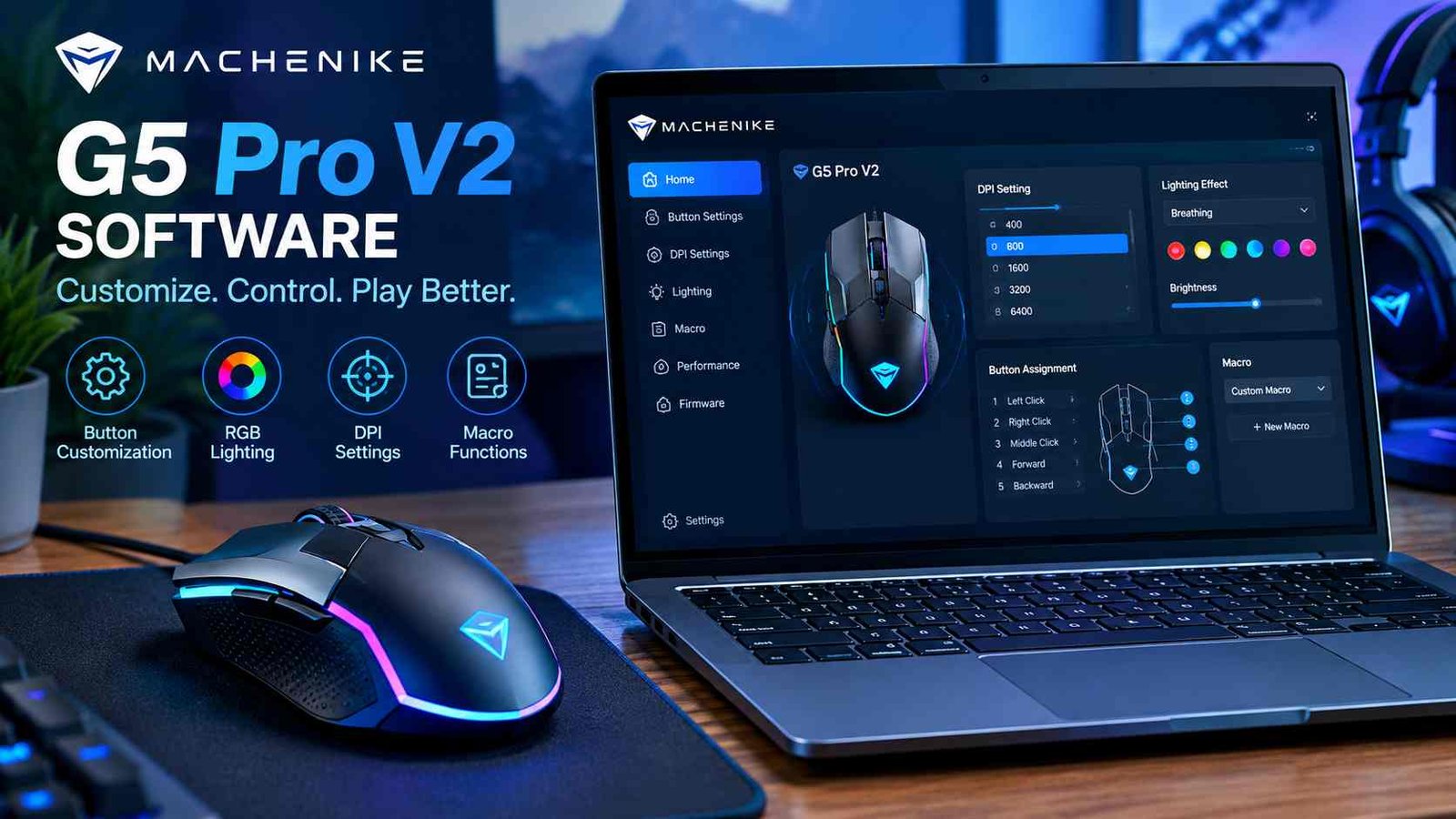
The machenike g5 pro v2 software makes it easier to customize and manage the Machenike G5 Pro V2 gaming controller. Instead of using the controller only with its default settings, gamers can use software features to adjust buttons, joysticks, triggers, vibration, RGB lighting, macros, and calibration. KeyLinker is the main customization app associated with the G5 Pro V2, giving users access to many of these settings.
For gamers, this type of customization can make a controller feel more comfortable and better suited to different games. For example, an FPS player may want to adjust joystick dead zones, while another player may prefer different button assignments or vibration levels. The software can also be useful when a controller needs calibration or a firmware update.
In this guide, we will explain what G5 Pro V2 software does, how KeyLinker works, how to customize the controller, how firmware and calibration fit into the process, and how to solve common software-related problems.
What Is Machenike G5 Pro V2 Software?
The Machenike G5 Pro V2 is a gaming controller designed to work across different gaming platforms and connection methods. The software side of the controller is mainly focused on customization rather than simply making the controller function. Basic controller functions can still be used without changing every setting, but KeyLinker provides additional control over the device.
What Is KeyLinker?
KeyLinker is the mobile application used to customize the G5 Pro V2. After installing the application, users can find the G5Pro_V2 device inside the app and enter its customization interface. From there, different controller settings can be adjusted according to the user’s needs.
This is useful because gamers do not have to depend entirely on the controller’s factory configuration. They can change controls and other settings to create a setup that feels more natural for their preferred games.
Does the G5 Pro V2 Need Software?
Not necessarily. The controller can perform its basic functions without extensive customization. However, software becomes useful when you want to change button assignments, adjust dead zones, calibrate controls, manage lighting or vibration, or handle firmware-related tasks.
Where to Download Machenike G5 Pro V2 Software?
When looking for machenike g5 pro v2 software, it is important to identify the exact controller model before downloading an application, driver, or firmware file. The G5 Pro V2 should not automatically be treated as the same device as the older G5 Pro because hardware and firmware compatibility can differ.
Official Sources and KeyLinker
The supplied documentation identifies the G5 Pro V2 as the G5 Pro V2 Gamepad Controller and points users toward KeyLinker for customization and related firmware functions.
Users should therefore look for the correct KeyLinker version and make sure the device is identified as G5Pro_V2 inside the application. Downloading random drivers or firmware from unknown websites can create unnecessary compatibility or security risks.
If a website provides software for a different G5 model, check the model number carefully before installing it. Using the wrong firmware can cause problems that are much harder to fix than simply choosing the correct software in the first place.
How to Install and Set Up Machenike G5 Pro V2 Software?
Setting up the G5 Pro V2 software is mainly about installing KeyLinker and allowing the application to communicate with the controller. Start by installing the application on a supported mobile device and opening it after installation.
Once the application is ready, turn on the controller and look for G5Pro_V2 in KeyLinker. Select the controller to enter its customization interface. The available documentation specifically describes this process and notes that customization does not necessarily depend on a conventional Bluetooth connection between the phone and controller.
The exact connection behavior can depend on the controller mode and the function being used. This is why it is better to follow the application’s instructions instead of assuming that every feature works through the same connection method.
After the controller appears in the app, take a moment to explore the available settings. It is usually better to change one setting at a time and test it before making several changes together.
What Can You Customize With Machenike G5 Pro V2 Software?
One of the biggest reasons to use machenike g5 pro v2 software is the range of customization options. KeyLinker can provide controls for button mapping, joystick settings, triggers, macros, vibration, RGB lighting, and calibration.
Button and Joystick Settings
Button mapping allows you to change the function assigned to particular controls. This can be useful when a game’s default layout does not feel comfortable. Joystick settings are also important because they can include dead-zone adjustments and other tuning options.
A dead zone determines how much a joystick must move before the game responds. A very large dead zone can make small movements feel less responsive, while an extremely small setting may make unwanted movement more noticeable. The G5 Pro V2 also provides square and round joystick tuning options through KeyLinker.
Triggers, Macros, Vibration and RGB
Trigger settings can be adjusted for a more suitable response, while macro and combo functions can provide additional programmable options. Vibration settings allow users to change feedback, and RGB controls can be used to change lighting effects, brightness, colors, and animation behavior.These options are best treated as personal configuration tools. There is no single setting that will feel perfect for every gamer or every game.
How to Calibrate the Machenike G5 Pro V2?
Calibration is important when controller input does not seem accurate. A joystick may not appear perfectly centered, a trigger may not register its full range, or movement may feel inconsistent. Calibration can help the controller correctly interpret its physical inputs.
Joystick and Trigger Calibration
During joystick calibration, the user generally needs to keep the sticks in the required positions and follow the application’s calibration process. After calibration, the controller should be tested in an actual game or controller-testing environment.Trigger calibration follows a similar idea. The goal is to make sure the controller correctly understands the trigger’s input range.
Motion Calibration
The G5 Pro V2 documentation also includes motion-sensing calibration. This can be particularly relevant when using motion features on compatible platforms. The supplied outline identifies joystick, trigger, and motion-sensing calibration as supported procedures.
If calibration does not solve a physical problem, such as persistent severe drift, software adjustments may not be enough. In that situation, the controller’s hardware may also need to be inspected.
How to Update Machenike G5 Pro V2 Firmware?
Firmware is different from normal configuration settings. Configuration changes control how the device behaves, while firmware is the software built into the controller itself. Firmware updates may improve compatibility or address device-related issues.
Before updating, check that the selected device is actually the G5 Pro V2. Then use the available firmware option in the appropriate software or application. The supplied material describes checking firmware through KeyLinker and following the application’s update instructions.Keep the controller sufficiently powered during the update and do not disconnect it unnecessarily. An interrupted firmware process can create additional problems.
If an update fails, restart the controller and application, reconnect the device, check permissions, and confirm that the firmware matches the G5 Pro V2. Avoid experimenting with firmware intended for another G5 model.
1000Hz Polling Rate and Connection Modes
The G5 Pro V2 is documented with a 1000Hz joystick return or polling rate. In simple terms, polling rate describes how frequently a controller reports its input to the connected device. A higher polling rate can contribute to responsive input, although it is not the only factor that affects how fast a controller feels.
The controller supports wired, Bluetooth, and 2.4G connection options. Each method can be useful in different situations. Wired connections are convenient when you want a direct connection, while wireless options provide greater freedom of movement.
For FPS games, players may pay close attention to responsiveness, but polling rate should not be considered in isolation. Game settings, connection quality, system performance, controller configuration, and personal preferences can all affect the overall experience.
RGB, Vibration, Macros and Button Mapping
Customization becomes more interesting when you combine basic control settings with features such as RGB lighting and vibration. The software can provide options for changing lighting effects, colors, brightness, and animation speed. Vibration settings can also be adjusted for grip and trigger feedback.
Macros and button mapping provide another level of customization. A programmable button can be assigned a different function, while supported macro features can be configured for particular sequences. After creating a change, it is sensible to save it and test it before using the controller in an important game.
However, macros should be used carefully in online games. Some games have rules against certain forms of automation or programmable input. Always check the rules of the particular game before using advanced macro functions. The supplied outline specifically recommends considering these limitations.
Machenike G5 Pro V2 Software Compatibility
The G5 Pro V2 supports several connection and platform options. The supplied material identifies Windows PC, Android, iOS, and Nintendo Switch among the relevant platforms and also documents wired, Bluetooth, and 2.4G connection methods.
On PC, the main concern may be whether the controller is recognized correctly and whether the selected connection mode is appropriate. On Android and iOS, KeyLinker provides the main customization experience described for the controller.
Nintendo Switch users may also have access to controller functions involving motion controls and calibration. Because features can depend on the selected platform and connection method, it is important to check the appropriate instructions rather than assuming every software feature works identically everywhere.The most important compatibility rule is simple: always confirm that your software and firmware are intended for the G5 Pro V2.
Common Machenike G5 Pro V2 Software Problems
Software problems can sometimes be fixed with simple checks. If KeyLinker cannot find the controller, restart the application, check permissions, confirm the controller mode, and reconnect the device.If the controller is not recognized by a PC, check the USB cable and try another USB port. It can also help to restart the controller and confirm that the correct connection mode is being used.
Joystick drift is another issue users may notice. Start by checking the dead-zone setting and running calibration. If the problem remains even after reasonable software adjustments, the physical joystick may need inspection.Another possible problem is reversed RT and LT behavior. Check the controller mode, game input settings, button mapping, and calibration before assuming there is a hardware fault.
For firmware problems, verify the correct firmware, check power levels, restart the application, and reconnect the controller. Avoid interrupting firmware updates.
Machenike G5 Pro vs. G5 Pro V2 Software
The original G5 Pro and G5 Pro V2 should not automatically be treated as identical devices. Hardware, firmware, and software compatibility can differ between models. Using an older driver’s software or firmware with the V2 version may result in incorrect device detection or other compatibility problems.
This is particularly important because the supplied research notes some confusion around the availability of dedicated PC software for the G5 Pro V2 and reports that a manufacturer’s website appeared to show software associated with the predecessor.
For that reason, users should confirm the exact model before downloading anything. If the application identifies the device as G5Pro_V2, that is a useful indication that the correct controller has been selected.
Best Settings for Different Types of Games
There is no universal configuration for every game. FPS players may prefer carefully adjusted dead zones and responsive trigger settings, while racing players may care more about trigger response, joystick behavior, and vibration.
For action and adventure games, many players may prefer comfortable standard sensitivity and moderate vibration rather than highly aggressive input settings. Button mapping can also make frequently used controls easier to reach.
The important point is to test settings instead of copying someone else’s configuration exactly. Different games use different control systems, and every player has a different hand position and preferred response. The supplied outline also emphasizes testing settings because personal movement and game requirements can affect how a configuration feels.
Key Features at a Glance
| Feature | Main Purpose |
| Button Mapping | Changes controller functions |
| Joystick Settings | Adjusts dead zones and response |
| Calibration | Helps correct inaccurate input |
| Trigger Settings | Adjusts trigger behavior |
| Macros | Creates programmable sequences |
| RGB | Controls lighting effects |
| Vibration | Adjusts feedback |
| Firmware | Manages controller firmware |
| Rocker Tuning | Provides square or round tuning |
| Combo Settings | Configures combined inputs |
These features summarize the main customization areas covered by the supplied G5 Pro V2 software outline.
FAQ’s
1. What software is mainly used to customize the G5 Pro V2?
KeyLinker is the main customization application described for the G5 Pro V2. It provides access to settings such as button mapping, calibration, dead zones, vibration, RGB, and other controls.
2. Can I use the G5 Pro V2 without KeyLinker?
Yes. Software is mainly useful for advanced customization and management. Basic controller operation does not require you to change every available setting.
3. Why should I avoid firmware made for the older G5 Pro?
The original G5 Pro and G5 Pro V2 may have different hardware or firmware requirements. Using the wrong firmware can cause compatibility problems, so always verify the exact model first.
4. What should I change first if my joystick feels inaccurate?
Start with calibration and then check the dead-zone settings. If the problem continues after reasonable software adjustments, the physical joystick may require inspection.
5. Should I use the same settings for every game?
Not necessarily. FPS, racing, action, and adventure games can benefit from different controller configurations. Testing your settings in each game is usually more useful than copying one configuration everywhere.
Conclusion
The machenike g5 pro v2 software gives users more control over their Machenike G5 Pro V2 controller. Through KeyLinker, gamers can customize buttons, joysticks, triggers, vibration, RGB lighting, macros, and calibration settings. The software can also play an important role in firmware management and troubleshooting.
The best approach is to identify the correct G5 Pro V2 model first, use compatible software and firmware, and make changes gradually. Start with calibration and basic button or joystick adjustments, then test the controller in your games. With the right configuration, the software can make the controller more comfortable and better suited to different gaming styles.